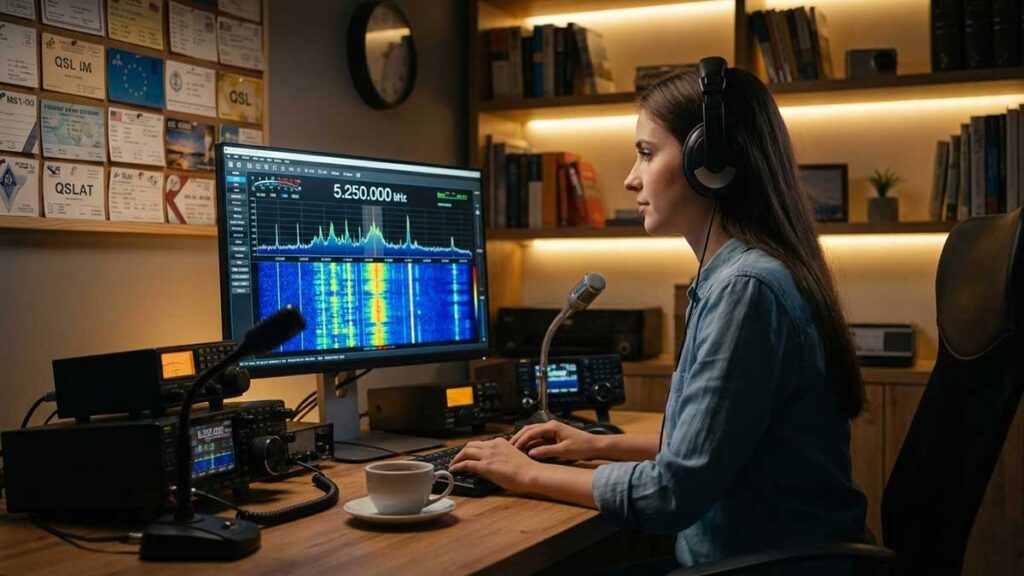
FT2 – The New Digital Revolution: Faster than FT4, more dynamic than FT8

FT2 – The New Digital Revolution: Faster than FT4, more dynamic than FT8
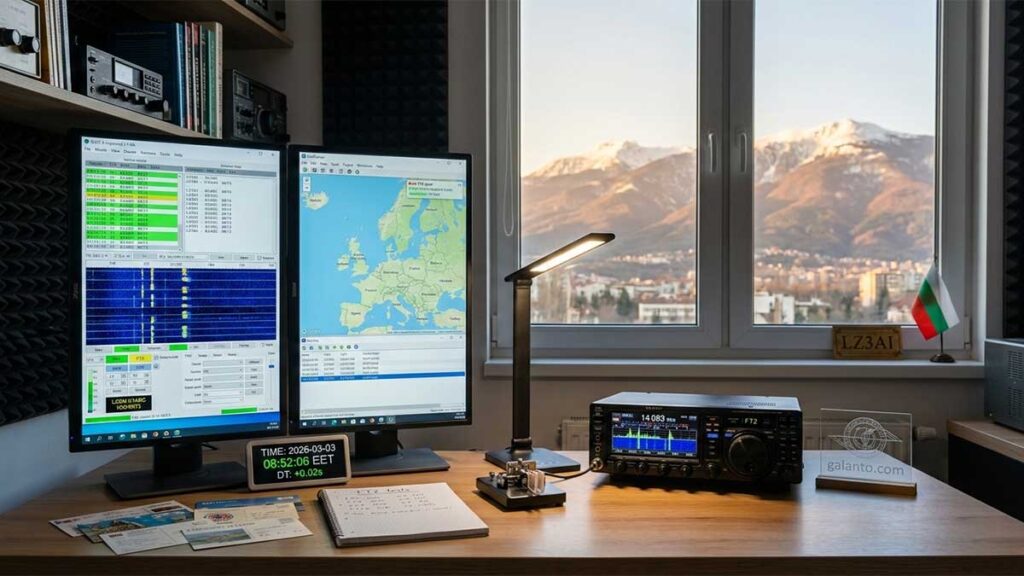
FT2 – The New Digital Revolution: Faster than FT4, more dynamic than FT8

FT2 – The New Speed ​​Champion in Amateur Radio – A Practical Guide

The World of Amateur Radio Communications is changing at lightning speed, and if you thought FT8/FT4 was the pinnacle of efficiency, get ready for something new. Starting in early 2026, a new player has hit the airwaves – FT2. This experimental mode promises to make our connections faster than ever, shortening the transmission cycle to an incredible 3.75 seconds.

In this article, we’ll look at what exactly FT2 is, how to set it up, and why time accuracy is no longer just a recommendation, but a critical requirement.

What is FT2?

FT2 is an ultra-fast digital mode integrated into the latest version of WSJT-X Improved (3.1.0) by Uwe, DG2YCB. It should be noted that the name FT2 originally appeared in the Italian project Decodium, but the version in WSJT-X Improved is completely open source and optimized for mass use.

(author’s note. Please note that Decodium’s FT2 and WSJT-X Improved’s FT2 are currently not compatible. Don’t be too happy if you see that JTDX-improved starts decoding FT2 – there is no transmission support, nor are the frequencies set – for the author of JTDX-improved FT2 it is not yet a priority)

FT2 is also integrated in the MSHV version (2.76.5) version by Christo, LZ2HV.

Main features
  • Cycle (T/R period): 3.75 seconds (Compared to 15 sec on FT8 and 7.5 sec on FT4).
  • QSO Duration: A full contact can be completed in less than 15-20 seconds.
  • Sensitivity: About -12 dB to -14 dB (ideal for contests and strong DX signals).
  • Bandwidth: About 120-150 Hz.
What’s the situation with JTDX Improved?

Although the author of JTDX Improved (also based on Igor’s work, UA3DJY) keeps up with the latest news, he is a bit more conservative than Uwe (DG2YCB) regarding experimental modes.

Here’s what you need to know:

  1. Decoding Only: JTDX Improved (in its latest test versions) can detect and display FT2 signals on the waterfall if they are within range of its decoder. This is possible thanks to shared libraries between the two “Improved” versions.
  2. Transmit (TX): As of March 2026, JTDX still does not have an official “FT2” button in the main mode selection menu. JTDX is focused on maximum FT8 sensitivity, while WSJT-X Improved is the “innovation platform” where new things like FT2 are tested.
Where to find FT2? (preferred frequencies as of early 2026)

Since the mode is new, it does not yet have official IARU segments, but the international community has already adopted the following frequencies (for all USB, DATA-U):

Range Frequency (MHz) Note   
160m 1.846 MHz At the end of the digital segment
80m 3.581 MHz Well above FT8 (3.573) and FT4 (3.575)
60 5.360 MHz Be careful with the 60m regulations!
40m 7.052 MHz Traditional place for experiments
30m 10.144 MHz Just over FT4 (10.140)
20m 14.084 MHz (Highest activity – just above FT4 (14.080)
17m 18.108 MHz Just over FT4 (18.104)
15m 21.144 MHz Just over FT4 (21.140)
12m 24.923 MHz Just over FT4 (24.919)
10m 28.184 MHz The second most active frequency – above FT4 (28.180)
6m 50.320 MHz Experimental for Es (sporadic layer)

Note: You don’t need to manually enter these frequencies in WSJT Improved – go to the settings from /File/Settings/Frequencies and somewhere in the field where the frequencies are listed, right-click and select Reset. Most of the frequencies for FT2 will appear (the current version of WSJT Improved is missing only the frequency for 160 m).

How to find out if and where there is activity?

Although the mode is quite new, PSK Reporter filters it correctly under the name FT2. Set Using: FT2 and you will find out where the coupon is now.
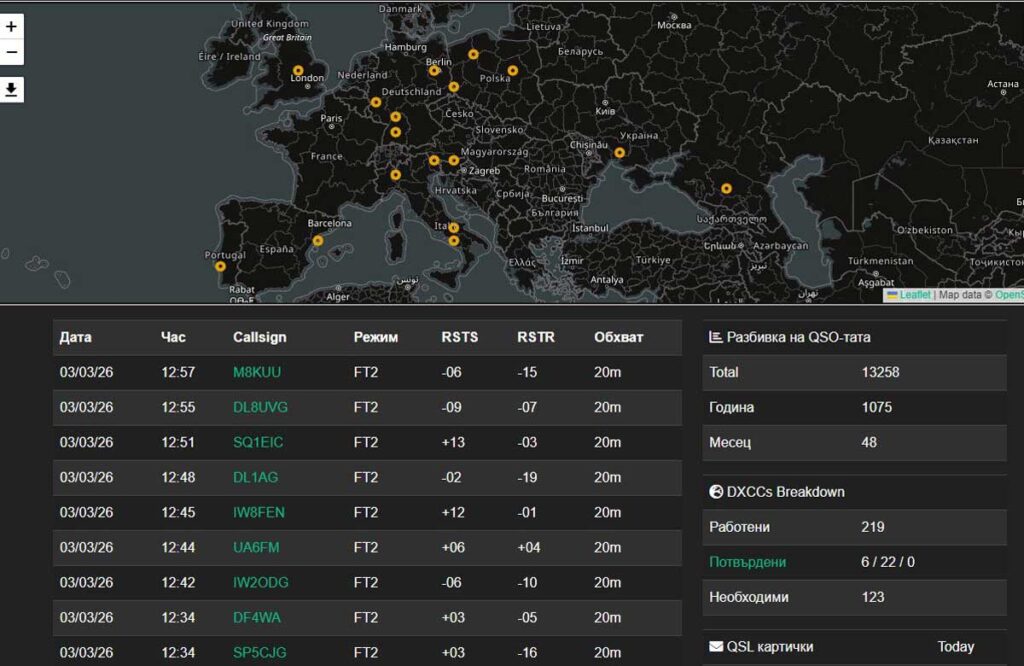
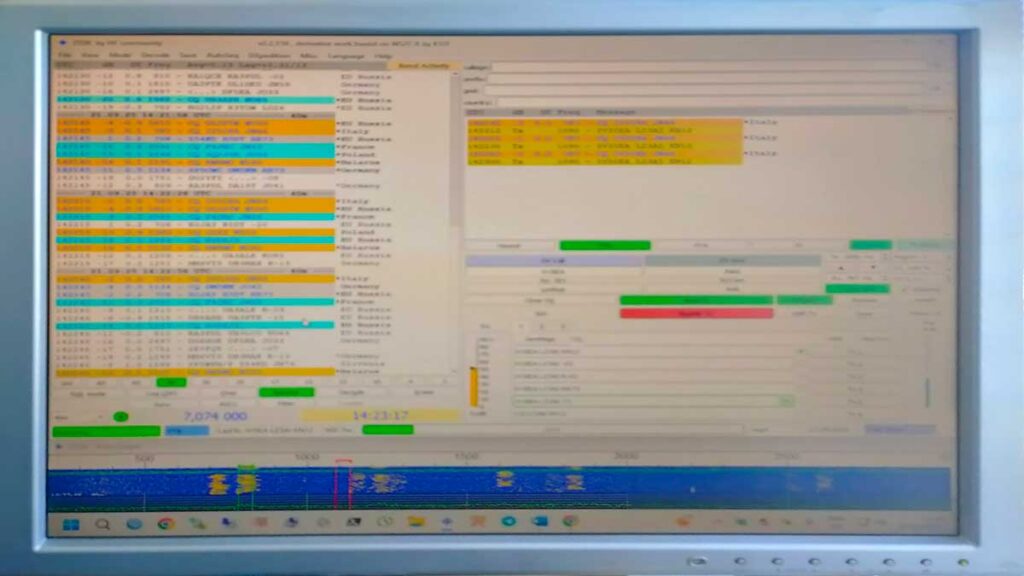
Excerpt from LZ3AI's log
Excerpt from LZ3AI’s log
The critical point: Time synchronization

If with FT8 perhaps even a difference of 1 second (DT) is permissible, with FT2 this will make you “deaf” to the air. Due to the extremely short cycle, your computer must be synchronized with an accuracy of ± 50 ms.

Recommendation: The standard Windows synchronization is not enough. Use software like Dimension 4 or NetTime, set to check every 10-15 minutes, or the professional solution Meinberg NTP. I use the free version of NetTime with a synchronization period of 15 minutes (for a shorter period, the full version is required). 15 minutes is a good interval, but if I notice that the DT (Time Difference) in WSJT-X starts to exceed 0.2 – 0.3, I may have to look for an alternative, as much as I don’t want to push something I’m used to.

Alternatives to NetTime: Dimension 4 or Meinberg NTP

If you decide to experiment, many digital mode operators use:

  1. Dimension 4: Completely free, allows synchronization every few minutes and is very lightweight.
  2. Meinberg NTP: This is the “heavy artillery”. It turns your Windows into a true NTP client that maintains the time accurate to milliseconds in real time, without “jumping” at intervals.

Important: If you use NetTime or one of the alternatives, do not forget to completely disable Windows synchronization to avoid conflicts and inaccuracies in synchronization.

Practical Tips for Operating the Yaesu FTDX10 and Other Modern Radios
  1. ALC and Levels: Since switching between receive and transmit is extremely fast, make sure your ALC levels are set to zero. Rapid transitions can generate interference if the audio levels are turned up too high. Adjust the levels so that the ALC needle does not move, so as not to “slap” on neighboring stations in this fast mode.
  2. Split Mode: Be sure to use “Fake It” or “Rig” in the WSJT-X Improved settings (from the Radio settings) to maintain signal purity.
  3. Filter Width: FT2 is wider than FT8 (about 120 Hz vs. 50 Hz). Make sure your radio’s filter in DIGI mode is at least 2400 Hz or 3000-3050 Hz to see the entire waterfall without “clipping” at the edges.
  4. Temperature mode: Your radio will work much harder. Intervals are shorter, but so are breaks. Watch for cooling during longer sessions.
Logbook and Acknowledgements (QSL)

Currently, QRZ.com reports FT2 connections as MFSK mode.

LoTW is still in the process of adding official support. At the moment, it will report your FT2 connections as errors due to the requirement for digital signing with TQSL.

If you use Wavelog, you shouldn’t have any problems.

Since FT2 is not yet officialized, QSL is unlikely to be needed for diplomas or competitions. But if you still want your confirmations to take effect immediately, then in software that does not support FT2, you can export your connections as MFSK or DATA. And hope that your correspondent announces them the same way. So, until the ADIF standard is officially updated – all fans of digital modes hope that this will happen soon.

Conclusion

FT2 is not here to replace FT8, but to give us speed when conditions allow it. This is the ideal mode for contests and “bursts” of radio waves on 10 meters.

Download the latest version of WSJT-X Improved, set your watch and see you on 14.083 MHz!

73 de LZ3AI!

Frequency range 5250 – 5450 kHz

The 5250 - 5450 kHz range
The 5250 – 5450 kHz range

The 5250 – 5450 kHz range

Allowed for Bulgarian radio amateurs 1 class on a secondary basis.

All classes of emission with a maximum permissible power 100 W are permitted for this frequency range, except for the 5351.5 – 5366.5 kHz band, where amateur radio stations must not exceed 15 W equivalent isotropically radiated power (EIRP). The fact that it is permitted for all classes of transmission and operating modes does not exclude the formation of certain preferences, and the table below reflects these.

The range is not permitted for class 2 amateurs, but this is a great opportunity to take the exam and win class 1 – and this is completely achievable!

Range From (kHz) To (kHz)  Preferences Notes
HF 60 m 5250 5255 CW Unofficial CW DX window
5250 5275 SSB
5260 SSB UK Channel 5-01 USB
5275 5351.5 CW SSB DIGI
5280 SSB UK Channel 5-02 USB
5332 CW US Channel 5-06 CW-U
5332 SSB US Channel 5-01 USB
5332 DIGI US Channel 5-11 DATA-U
5348 CW US Channel 5-07 CW-U
5348 SSB US Channel 5-02 USB
5348 DIGI US Channel 5-12 DATA-U
5251.5 5354 CW SSB DIGI CW, NBM
5254.0 5366 CW All, USB, Voice Operation
5290.5 SSB UK Channel 5-03 USB
5357
5358.5 CW US Channel 5-08 CW-U
5358.5 SSB
5358.5 DIGI US Channel 5-13 DATA-U
5366.0 5366.5 DIGI
5366.5 5450 CW SSB DIGI
5368 SSB US Channel 5-04 USB
5373 SSB US Channel 5-04 USB
5373 CW US Channel 5-09 CW-U
5373 SSB UK Channel 5-05 USB
5373 DIGI US Channel 5-14 DATA-U
5400 SSB UK Channel 5-06 USB
5405 SSB US Channel 5-05 USB
5405 CW US Channel 5-10 CW-U
5405 DIGI US Channel 5-14 DATA-U
Limitations

It would not be correct to comment on the 15 W equivalent isotropically radiated power (EIRP) limitation for part of the range. It was probably invented by smarter minds than me, but I will try to explain what this means. After all, radio amateurs do not necessarily have to be engineers in this field. I hope my explanation will be of help to them.

What is equivalent isotropically radiated power (EIRP)

Equivalent isotropically radiated power (EIRP) is a theoretical quantity that measures the total power radiated by an antenna in the direction of its maximum gain.

Or EIRP represents the power that would have to be fed to an ideal isotropic antenna (which spreads the signal equally in all directions) to achieve the same signal intensity that a real directional antenna achieves at its strongest point of radiation.

I try not to write formulas, but my explanation does not seem to make it much clearer. Let’s emphasize the practical with a concrete example.

To comply with the 15 W EIRP limit on a portion of the 60-meter range using a standard dipole, the output power of our transmitter must be set to approximately 9.15 W (with zero cable loss).

This is because the 15 W limit does not apply to the final power of the transceiver itself, but to the energy that is actually radiated into space. Since most antennas (even a simple dipole) concentrate energy in certain directions, they have a “gain”. EIRP takes into account this gain relative to a theoretical isotropic antenna (and it is measured in dBi). Let’s say we use a half-wave dipole for 60 m. The theoretical gain of a half-wave dipole in free space is 2.15 dBi. This means that the dipole radiates 1.64 times more in its maximum radiation direction than an isotropic antenna. To determine the allowed power at the transmitter output, we need to divide the defined power of 15 W by 1.64, which gives 9.146 𝑊. In real conditions, we also have losses in the feeder to the antenna. If they are, for example, 1 dB or 0.79 as a factor, we can slightly increase the power of the transceiver (to about 11.5 𝑊).

In short:

We, Bulgarian radio amateurs, should know that when operating on 60 m with a regular dipole, the transceiver power should not exceed 9.15 W, if there are no significant losses in the feeder. If you use an antenna with higher gain, the power should be reduced even more, and with antennas with losses (for example, shortened verticals or other compromise antennas) – the transceiver power can be increased, as long as the calculated EIRP remains within 15 W.

Why this limitation is only for the range 5351.5 – 5366.5 kHz I also cannot know, if this material is read by some knowledgeable employee of the Bulgarian Radio and Television Commission, maybe he will write some useful explanatory comments. My personal guess is that the 5351.5 – 5366.5 kHz band is the internationally agreed upon WRC-15 (World Radiocommunication Conference) frequency band, which is allocated to the amateur service on a secondary basis worldwide (Region 1). The 15W EIRP limit was adopted by the ITU to protect the fixed and mobile services (military, diplomatic, etc.), which are primary users. The rest of the band (5250-5450 kHz) is a national allocation that the Bulgarian Radio and Television Commission has specifically allowed for Bulgaria, and therefore the more liberal national rules (100W) apply there.

Of course, everyone can share their opinion in a comment! Especially if something is not as I have described it – I will be happy to make the necessary corrections.

Bibliography:
  1. Communications Regulation Commission (CRC)Rules for the use of radio frequency spectrum for radio equipment by amateur radio service, , Issued by the Communications Regulation Commission, Promulgated in the State Gazette No. 35 of May 10, 2022, amended and supplemented by the State Gazette. No. 64 of August 5, 2025.
  2. IARU Region 1HF Manager’s Handbook, Version 9.0 – Section for the 5 MHz (60m) frequency plan.
  3. ITU (International Telecommunication Union)Final Acts WRC-15, World Radiocommunication Conference 2015, Geneva.
  4. Bulgarian Amateur Radio Federation (BAFRF)National Frequency Plan and Regulatory Framework for the 60-meter Band.
  5. G4IFB, John Raydo60m Band Enthusiast’s Guide – (International resource for the specifics of 5 MHz operation).

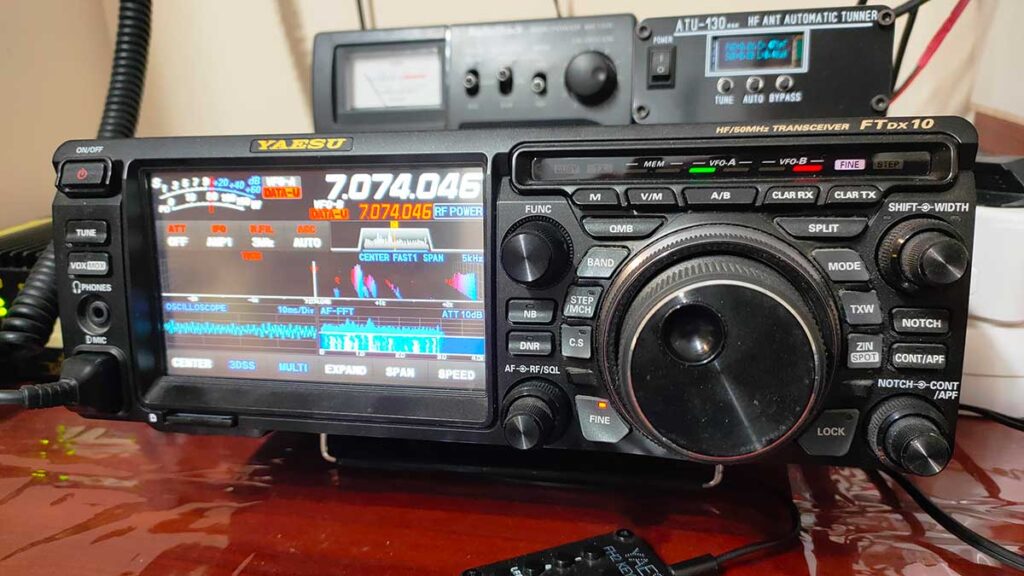
Basic one-time settings of the Yaesu FTDX-10

Basic one-time settings for Yaesu FTDX-10

Basic one-time settings for Yaesu FTDX-10

I am not claiming that these are the best, most important or “only”.

These are the settings that I have made and with which I work successfully. They are made once and generally do not need to be changed, which is why I have called the publication “Basic one-time settings for Yaesu FTDX-10“. Some are simply initial or most frequently used values, it does not prevent them from being changed operationally.

Anyone who wishes can check which setting does what exactly or ask in a comment. I don’t plan to write this here, so as not to unnecessarily burden the publication. I will try to answer everyone.

I will separately publish the operational settings for operation in the different modes, and I will also put references here.

I am sure that you will quickly get used to the way it is written and what it means – the writing is analogous (or at least similar) to that in the operating instructions.

General basic settings

[FUNC] <DISPLAY SETTING> <MY CALL> – home screen – callsign – up to 12 characters

[FUNC] <EXTENSION SETTING> <DATE&TIME> – date and time setting

(more about these two settings you can read here)

[RF/SQL] on the far right position

(maximum gain on HF – this does not mean that it should always be there – in any situation on the air, another position may be better and the audibility – also better, i.e. it is good to try it out operationally. But it is a good “initial” position.)


Recommended initial settings related to the display

[CS] continuously {LEVEL} – for easy adjustment of the “grass” with [CS]

[FUNC] <DISPLAY SETTING> <SCOPE> <SCOPE CTR> <CARRIER>

[FUNC] <DISPLAY SETTING> <SCOPE> < 2D DISP SENSITIVITY> <HI>

[FUNC] <DISPLAY SETTING> <SCOPE> <3DSS DISP SENSITIVITY> <HI>


Basic CW listening settings

[FUNC] <BK-IN DELAY> <200 ms> delay when returning to receive

[FUNC] <BK-IN> <OFF> must be turned on manually when transmitting CW

[FUNC] <CW PITCH> <750 Hz> (according to preference)

[FUNC] <CW SETTING> <MODE CW> <CW BK-IN TYPE> <SEMI>

[FUNC] <CW SETTING> <MODE CW> <CW FREQ DISPLAY> <PITCH OFFSET>

[FUNC] <CW SETTING> <MODE CW> <CW INDICATOR> <ON>

[FUNC] <CW SETTING> <MODE CW> <PC KEYING> <OFF>

[FUNC] <CW SPEED> <14> (this is 70 zn/min – according to preferences)


<CW OPERATION>


Basic settings for CW/DATA from external software via USB cable

[FUNC] <RADIO SETTINGS> <MODE PSK/DATA> <DATA MOD SOURCE> <REAR>

[FUNC] <RADIO SETTINGS> <MODE PSK/DATA> <REAR SELECT> <USB>

[FUNC] <RADIO SETTINGS> <MODE PSK/DATA> <RPORT GAIN> <12>

[FUNC] <RADIO SETTINGS> <MODE PSK/DATA> <RPTT SELECT> <RTS>

[FUNC] <RADIO SETTING> <MODE PSK/DATA> <TX BPF SEL> <100-2900 Hz>

[FUNC] <OPERATING SETTINGS> <GENERAL> <CAT RTS> <OFF>

[FUNC] <OPERATING SETTINGS> <GENERAL> <CAT TIME OUT TIMER> <10>

[FUNC] <OPERATION SETTING> <GENERAL> <CAT RATE> <38400bps>

Setting the <PRESET> button for operation in digital modes

<MODE> <PRESET> and <DATA-U>

<MODE> <PRESET continuously> until the PRESET functions appear:

<PRESET> <CAT RTS > <OFF>

<PRESET> <CAT RATE > <34800bps>

<PRESET> <CAT TIME OUT TIMER> <10ms>

<PRESET> <LCUT FREQ> <100Hz>

<PRESET> <HCUTFREQ> <3200Hz>

<PRESET> <TX BPFSELECT> <100-2900Hz>

<PRESET> <REAR SELECT> <USB>

<PRESET> <RPORT GAIN> <12>

<PRESET> <RPORT SELECT> <RTS>

<PRESET> <AGC FAST DELAY> <160ms>

<PRESET> <AGC MID DELAY> <500ms>

<PRESET> <AGC SLOW DELAY> <1500ms>

<PRESET> <LCUT SLOPE> <18dB/oct>

<PRESET> <HCUT SLOPE> <18dB/oct>


<FT8-FT4-PSK-DATA OPERATION>


Installing software on the computer connected to the radio

A USB isolator is placed on the USB port in use for protection.

Install the FTDX-10 drivers from the Yaesu website https://www.yaesu.com.

Install and configure your preferred software (personally, I use JTDX Enchanced most often and prefer it – it is not suitable for competitions).

Additional software for accurate time is mandatory. (For example, NetTime http://www.timesynctool.com – I would not say that I recommend it, but I use it and I am satisfied).

Turn off the automatic time update from Windows itself.


Basic settings for SSB, AM, FM, PSK, DATA operation

[FUNC] <AMC LEVEL> <60>

[FUNC] <MIC EQ> <OFF>

[FUNC] <MIC GAIN> <30>

[FUNC] <OPERATING SETTINGS> <TX AUDIO> <AMC RELEASE TIME> <FAST>

[FUNC] <PROC LEVEL> <12>

[FUNC] <RADIO SETTING> <MODE SSB> <SSB MOD SOURCE> <MIC>

[FUNC] <RADIO SETTING> <MODE SSB> <TX BPF SEL> <200-2800Hz> ? <503050 Hz>

[FUNC] <RADIO SETTING> <MODE AM> <TX BPF SEL> <50-3050Hz>

[FUNC] <RADIO SETTING> <MODE AM> <AM MOD SOURCE> <MIC>

[FUNC] <RADIO SETTING> <MODE FM> <FM MOD SOURCE> <MIC>

[FUNC] <RADIO SETTING> <MODE PSK/DATA> <TX BPF SEL> <100-2900Hz>


<SSB-AM-FM OPERATION>


SSB mode when using USB cable, software and speech from computer

(if this mode is not used, the values ​​are in orange)

<MODE> <DATA-U>

[FUNC] <RADIO SETTINGS> <MODE SSB> <SSB MOD SOURCE> <REAR> <MIC>

[FUNC] <RADIO SETTINGS> <MODE SSB> <REAR SELECT> <USB> <DATA>

[FUNC] <RADIO SETTINGS> <MODE SSB> <RPORT GAIN> <50> (according to software) <50>

[FUNC] <RADIO SETTINGS> <MODE SSB> <RPTT SELECT> <RTS> <DAKY>


I would be happy if you could share in a comment what the differences are with your settings, and also why you prefer them.

73!

FT8/FT4 Operation – FTDX-10

FT8/FT4 Operation
FT8/FT4 Operation

FT8/FT4 Operation

<MODE> <PRESET> and <DATA-U> (both to be included)

<R.FIL> <3 kHz>


Checking the exact time

https://time.is/


The exact time is updated at >200 ms with NetTime

http://www.timesynctool.com

A blank space is preferred for broadcasting from the waterfall.


Checking the exact time at https://time.is/


Setting up the connection with the software

Adjust the TX level to be within the limits before triggering ALC (in the white sector).

The transmission level should be 30-50 dB (read by the software).


Display setting

<SPAN> <5k> or <10k> (width of the display image)

<CURSOR> <CENTER> <FIX>

<CS> <outer knob> <adjust the “grass” according to preferences> <CS>


Screen capture

<MODE> long until double beep and “Screen Shot” on display


<BASIC ONE-TIME SETTINGS OF YAESU FTDX-10>

<CW OPERATION>

<SSB-AM-FM OPERATION>